For several different reasons, storage is a very important part of a computer. These days, computers do far more than they ever have in the past. From businesses to family photo’s, storage is the ideal way to keep documents on your computer. The most popular method of storage is the hard disk drive, which we all count on for keeping our data safe.
Even though the hard drive stores data, it isn’t perfect by any means. Hard drive failure is very common with all computers, with no real way to prevent it. Although there are several different reasons why a hard drive can fail, the most common is overheating. Viruses and crashes are common as well, along with theft and accidental deletion.
With the older style and mechanics of hard drives, the RPM speed was low, meaning that the drives wouldn’t overheat. The hard drives we use now days, have speeds between 7,200 and 10,000 RPM, meaning that they can get quite hot when they start working. Computers of this day and age come with fans to cool everything down, with most hard drives including temperature sensors as well, so you can keep track of just how hot your hard drive becomes.
With hard drives today, overheating is a very common problem. The faster hard drives come with speeds of 10,000 RPM, which can make the temperature soar above 70 degrees F, really heating things up inside the drive. The mechanics on the inside are built to withstand the heat, although if things become too hot, you’ll encounter problems. If a drive becomes too hot and ends up losing the data, it may be next to impossible to retrieve the information - no matter how good your data recovery specialists may be.
One area that suffers from the drive overheating is the platters, which are magnetic media. Platters are what carry the data throughout the hard drive. Platters are constructed from optical glass, aluminum, or ceramic and normally coated with a layer of magnetic material. Once the hard drive begins to heat up, the platters will start to expand, which changes their size. When this happens, the magnetic surface on the platters will get destroyed, which results in a loss of data. If the physical area of the platters are damaged, it will result in unreadable sectors.
Other areas of the hard drive that can be damaged due to overheating are the read and write heads, head actuator, and the controller chip. Hard drives are very sophisticated pieces of hardware, and can’t handle overheating. The read and write heads are a common example, as they can easily render the drive useless if they become damaged. If they get too hot, they don’t make any contact with media, which pretty much stops the flow of transfer from information to the computer.
To prevent your hard drive from overheating, you should always make sure that it is cooled properly and well ventilated. You can always get additional fans and coolers, which will improve both ventilation and the flow of air in your computer. You can buy fans and coolers at very affordable prices, which makes them an ideal investment for keeping your hard drive or hard drives cool.
You can also get software that monitors the temperature of your hard drive as well. Whether it’s software, or additional fans, you should always ensure that your hard drives are kept cool. By keeping them cool, you’ll greatly reduce the amount of crashes. You’ll also increase the stability of your hard drive as well, which will make your entire computer perform much better.
Showing posts with label HARD DISK. Show all posts
Showing posts with label HARD DISK. Show all posts
Sunday, June 5, 2011


Monday, November 23, 2009
Iomega eGo Black Belt Portable Hard Drive
Iomega Corporation has recently introduced an amazing ultra portable Hard Drive, the Iomega eGo BlackBelt Portable Hard Drive with superb features that lets you transfer high volumes of data at stunning high speeds.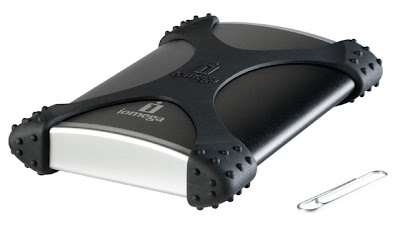 This Portable Hard Drive comes with the Iomega Drop Guard Xtreme features, which provides an unchallenged durability and protection. The most amazing part of the Drop Guard Xtreme is that it protects the Hard Disk from a 7-inch fall!
The Iomega eGo BlackBelt Portable Hard Drives are available from capacities ranging between 160 GB to 2TeraBytes. With such high volumes of data storage, you have a lot of space for your memorable photos, favorite videos, music and much more.
The additional plus point of the Hard Disk is that it does not require any kind of any external power for its running so no more hazels of power wires and power cuts! The package of Hard Disk features a free EMC® Retrospect® and MozyHome™ Online backup software for additional measure to prevent any loss of data (up to 2GB of data backup).
The Iomega egos Portable Hard Drive is available in a stylish black colored compact design with a Power Grip back, which can easily fit in a black briefcase. Following are the accessories availed on purchase of the Hard Disk
The Iomega eGo BlackBelt Portable Hard Drive comes with a 3 years of warranty, which can be extended by paying certain amount. For more Information and to know where to buy this wonderful Hard Disk
 This Portable Hard Drive comes with the Iomega Drop Guard Xtreme features, which provides an unchallenged durability and protection. The most amazing part of the Drop Guard Xtreme is that it protects the Hard Disk from a 7-inch fall!
 The Iomega eGo BlackBelt Portable Hard Drives are available from capacities ranging between 160 GB to 2TeraBytes. With such high volumes of data storage, you have a lot of space for your memorable photos, favorite videos, music and much more.
The additional plus point of the Hard Disk is that it does not require any kind of any external power for its running so no more hazels of power wires and power cuts! The package of Hard Disk features a free EMC® Retrospect® and MozyHome™ Online backup software for additional measure to prevent any loss of data (up to 2GB of data backup).
The Iomega egos Portable Hard Drive is available in a stylish black colored compact design with a Power Grip back, which can easily fit in a black briefcase. Following are the accessories availed on purchase of the Hard Disk
- USB 2.0 power cable for rapid data transfers
- Quick installation guide and user manual for guidance to installation features
- Backup software license, the software can be downloaded via computer
- McAfee 30 days Free Trial Version
- Sleek dimensions measuring .75" x 3.5" x 5.25" (L x W x H) and weights only 0.48 lbs
- Rapid data transfer at speed of 480 Mbits/s
The Iomega eGo BlackBelt Portable Hard Drive comes with a 3 years of warranty, which can be extended by paying certain amount. For more Information and to know where to buy this wonderful Hard Disk
Sunday, September 6, 2009
Hide ur drives

How to Hide the drives(c:,d:,e:,a:...etc)
How to Hide the drives(c:,d:,e:,a:...etc)
This is a great trick you can play on your friends. To disable the display of local or networked drives when you click My Computer.
1.Go to start->run.Type regedit.Now go to:
HKEY_CURRENT_USER\Software\Microsoft\Windows\CurrentVersion\Policies\Explorer
Now in the right pane create a new DWORD item and name it NoDrives(it is case sensitive). Now modify it's value and set it to 3FFFFFF (Hexadecimal) .Now restart your computer. So, now when you click on My Computer, no drives will be shown(all gone...). To enable display of drives in My Computer, simply delete this DWORD item that you created.Again restart your computer.You can now see all the drives again. Magic........
 ....
....
Sunday, May 3, 2009
Hard Drive
Your hard drive, or also called hard disk, is a gigantic diskette in your computer. It is one disk big enough to store you Operating System, games and programs. Without it, your PC is just an empty shell.
Check Your BIOS
Better beware of older systems with large hard drives. If you have an older motherboard, your BIOS might not recognize hard drives larger than 2.1 GB. Hopefully, your BIOS is EPROM which means although read only (noticed the ROM?) it can be edited by authorized editors. Nearly all newer motherboards support that. All you need to do is to go online, go to your motherboard manufacturer's website and try to download a flash BIOS update. Install it and it should be done.
Are You FAT Enough?
If you have a large capacity hard drive with more than 2.1 GB, you might have a problem. Windows 95 itself will only recognize a partition with not more than 2.1 GB. You need FAT32. With FAT32, you can have one large capacity hard drive without partitioning. You will also save some space with FAT32. In short, larger hard drives require FAT32.
Consider Partitioning
Although you can have one big fat hard drive as one partition, you should consider partitioning as well, if you have a big hare drive. Partitioning is the method of dividing an area on a disk into smaller portions of lesser capacities that can be recognized by the operating system. Picture this: your hard drive is a cake. It is easier to eat a cake divided into pieces than to eat it whole.
Partitioning enables you to achieve greater efficiency and functionality from high-capacity disks (2.1GB or greater). You can create partitions by using FDISK on a system running in MS-DOS mode or by using a third-party disk utility. Remember that after partitioning, all data will be loss so be careful.
You can set aside a small partition for backup purposes. In case you should decided to format, just format the partition you use to store Windows. Your data in the backup partition is still there. But be careful! If you format a FAT32 partition with a FAT16 formatting utility, your partitions with data in it will all be loss! So never install DOS after formatting Windows. Because DOS utilizes FAT16, your FAT32 partition will all be gone.
Access Time or Seek Time?
If you want to buy a hard drive but are confused with the specifications of access time and seek time, remember that the key to the speed of a hard drive is the average access time. This is the time taken to access a single sector to the time when the drive's head reaches the sector. But beware, some ads quote seek time that is not the appropriate measurement. Access time is seek time plus latency (the time it takes for the chosen sector to come around to be positioned under the read/write head)
Speed, Not Space
A lot of people are confused between speed and space. If you have a Quantum Fireball with 1.2 GB and a Quantum Bigfoot with 3.5 GB surely you should put the Bigfoot as the master and Fireball as the slave right? Wrong! You should always consider speed as well as space. The Quantum Fireball has a faster access time. A faster hard drive means better performance. Make sure your operating system is store in the faster hard drive. You can use the Bigfoot to store your programs or games which makes not much difference to the speed. With speed hungry programs or games, store them in the faster drive too. You must know what to put where.
The status of the drives is determined by setting small jumpers that are usually located next to the IDE connector on the drive itself.Brief History of the Hard Disk Drive
A Brief History of the Hard Disk Drive
Hard disks are one of the most important and also one of the most interesting components within the PC. They have a long and interesting history dating back to the early 1950s. Perhaps one reason that I find them so fascinating is how well engineers over the last few decades have done at improving them in every respect: reliability, capacity, speed, power usage, and more.
This excellent chart shows the evolution of IBM hard disks over the past 15 years. Several |
Image © IBM Corporation |

This section takes you on a brief "guided tour" of the history of hard disk drives, to help you understand more about how they were developed and what the key technological improvements were that enabled the modern disk drive that we all rely on today.
Hard Disk Drives
The hard disk drive in your system is the "data center" of the PC. It is here that all of your programs and data are stored between the occasions that you use the computer. Your hard disk (or disks) are the most important of the various types of permanent storage used in PCs (the others being floppy disks and other storage media such as CD-ROMs, tapes, removable drives, etc.) The hard disk differs from the others primarily in three ways: size (usually larger), speed (usually faster) and permanence (usually fixed in the PC and not removable).
Hard disk drives are almost as amazing as microprocessors in terms of the technology they use and how much progress they have made in terms of capacity, speed, and price in the last 20 years. The first PC hard disks had a capacity of 10 megabytes and a cost of over $100 per MB. Modern hard disks have capacities approaching 100 gigabytes and a cost of less than 1 cent per MB! This represents an improvement of 1,000,000% in just under 20 years, or around 67% cumulative improvement per year. At the same time, the speed of the hard disk and its interfaces have increased dramatically as well.
Top view of a 36 GB, 10,000 RPM, IBM SCSI |
Original image © IBM Corporation |

Your hard disk plays a significant role in the following important aspects of your computer system:
- Performance: The hard disk plays a very important role in overall system performance, probably more than most people recognize (though that is changing now as hard drives get more of the attention they deserve). The speed at which the PC boots up and programs load is directly related to hard disk speed. The hard disk's performance is also critical when multitasking is being used or when processing large amounts of data such as graphics work, editing sound and video, or working with databases.
- Storage Capacity: This is kind of obvious, but a bigger hard disk lets you store more programs and data.
- Software Support: Newer software needs more space and faster hard disks to load it efficiently. It's easy to remember when 1 GB was a lot of disk space; heck, it's even easy to remember when 100 MB was a lot of disk space! Now a PC with even 1 GB is considered by many to be "crippled", since it can barely hold modern (inflated) operating system files and a complement of standard business software.
- Reliability: One way to assess the importance of an item of hardware is to consider how much grief is caused if it fails. By this standard, the hard disk is the most important component by a long shot. As I often say, hardware can be replaced, but data cannot. A good quality hard disk, combined with smart maintenance and backup habits, can help ensure that the nightmare of data loss doesn't become part of your life.
This chapter takes a very detailed look at hard disks and how they work. This includes a full dissection of the internal components in the drive, a look at how data is formatted and stored, a discussion of performance issues, and a full analysis of the two main interfaces used to connect hard disks to the rest of the PC. A discussion is also included about the many confusing issues regarding hard disks and BIOS versions, and support for the newer and larger hard disks currently on the market. Finally, a full description is given of logical hard disk structures and the functioning of the FAT and NTFS file systems, by far the most popular currently used by PCs.
remove virus from your hard disk completly
There is nothing difficult in this ..to say simply jus scanning ur pc by connecting ur hard disk to other pc
many people format there hard disk totally even they have useful data cos of virus
but if we do follow these simple technique its very east
steps to be followed:
just connect your hard disk to one of ur friends computer who have updated antivirus-avira (Recommended)
when u connect the disk u can see extra drives in his system
just go scan drive by drive.when it detects a virus just check .delete the similar type files.u r done now.it will delete all the virus and u can see ur files are safe and in can if u loose some windows files u can just format windows drive
when you scan you can see that window .just check delete and u can also see another option to check "delete the similar type files" just check those 2 boxes.now you go do your work it will take some time ...depends on ur storage capacity and virus detections.now your harddisk is virus free with all your data
if you dont hav any computer avalable to connect your hard disk you can do scan your hard disk with your own computer.but the process may be slow.
this may look very simple but this is very useful and easy for normal users and ofcourse advacned users dosn't need this post becos they know wat to do
many people format there hard disk totally even they have useful data cos of virus
but if we do follow these simple technique its very east
steps to be followed:
just connect your hard disk to one of ur friends computer who have updated antivirus-avira (Recommended)
when u connect the disk u can see extra drives in his system
just go scan drive by drive.when it detects a virus just check .delete the similar type files.u r done now.it will delete all the virus and u can see ur files are safe and in can if u loose some windows files u can just format windows drive
when you scan you can see that window .just check delete and u can also see another option to check "delete the similar type files" just check those 2 boxes.now you go do your work it will take some time ...depends on ur storage capacity and virus detections.now your harddisk is virus free with all your data
if you dont hav any computer avalable to connect your hard disk you can do scan your hard disk with your own computer.but the process may be slow.
this may look very simple but this is very useful and easy for normal users and ofcourse advacned users dosn't need this post becos they know wat to do
Subscribe to:
Posts (Atom)